Showing posts with label SQL Server 2008. Show all posts

Monday, August 11, 2014

Fetching Data from DATABASE in spread sheet form - SQL Server 2008

Steps:
  1. Database Connection using DOT.NET
  2. Write Query
  3. Getting data in Spreadsheet form


Open you project in Visual Studio 


Click on SERVER EXPLORER and right click on DATA CONNECTION and select ADD CONNECTION in your running project


Open SQL Server 2008 and copy highlighted string


Paste COPPED string at point A, point B will become visible. 


Select Specific database from there.
I am working on gang war game so I am going to select GANG WAR GAME database
Then click OK


Select “FORM” where you want to display data in spread sheet from SQL Server 2008.


Select “DATA GRID VIEW” from ToolBox and place it on form.


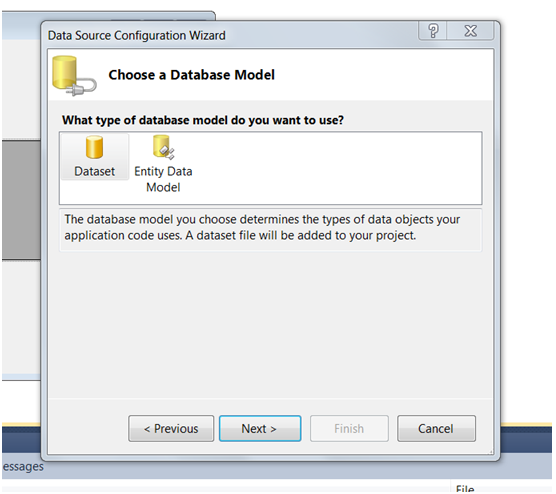
Select dropdown menu where (none) has been written then select “ADD PROJECT DATA SOURCE” then click “DATABASE” and click “NEXT”


Then Select “NEXT” again


At point A there is our database which we are going to add
You can change your database using “NEW CONNECTION”
When you click on point B “+” button connection string will be shown up
Click “NEXT”


Above screen been shown up. Click “NEXT”


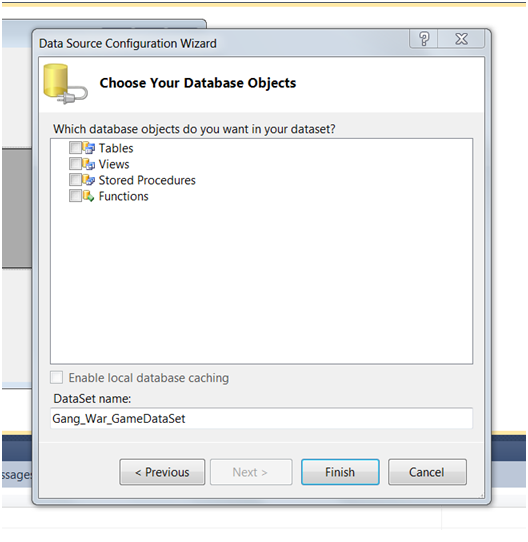
After that above window will be appear. Select (TICK) “TABLES” because you are going to insert TABLES. And click “FINISH”


After that all table can easily be seen. Select desired table at point B and then you can view all data at point A


Share:

Sunday, April 20, 2014

How to Install SQL Server 2008 or Later Step by Step Tutorial

Installation of SQL Server 2008 or later is very simple follow the following step and install on your laptop or computers.
If you are still unable to install, make sure all pre-requirements are fulfilled such as the installation of service pack 2.


If you are going to install SQL server express edition you must have visual studio if you are willing to install standalone SQL server then you need full version SQL Server ultimate or higher to install

Download SQL Server 2008
Double click on the installer a window  will open as follow:


From this window click on the Installation menu (See Left). Then select New SQL Server stand-alone installation or add features to an existing installation.


After that following window will appear Click on RUN PROGRAM


After that software will take some time to perform some task. Check that all status are passed


This is express edition so its not necessary to enter Product Key. Just click Next


Check Accept and click next


Now Click Install button


Now again It needs some operation to be completed. Click Next.


Now Check All and click Next


Here we need the name and instance ID. I am selecting Default Instance but keep the name “SQLExpress” in your mind for future (when we are going to connect SQL Server at start up every time). Click Next.


Now a window will appear. Click Next.


Click Next.


Now its not necessary to enter another user if you are trying to install on your personal PC. Click Next.


Click Next


If the status contains no Error. Click Next. Otherwise click on hyperlink text "Error" under status.


Now finally it is going to start the installation. Click Install


Now wait till installation is complete. Than click Next


Close this window


Exit the setup


Now SQL Server 2008 Express Edition has been installed on your computer an ICON will be on your desktop or simply search "SQL Express 2008" on start menu.


Share: